RT Signal Generator Interface Tool
User Guide
Release v0.1 March 2026
If you deal with simulation, system engineering, and data analytics, you know how hard it can be to get good, consistent sensor data for testing and development. Real hardware is expensive, and field tests don’t always give us the perfect signal we need to validate our control system. What if we could generate perfectly tailored, realistic virtual sensor data right from our local PC ?
The Real Time Signal Generator Interface Tool (RTSG) is a Microsoft VBA based interface which help user to create virtual signal and master data log for all industrial applications. User can create and or customize the continuous base curve [Extension of “Function Interface Tool” © a2matrix], time series log data with noise, and random variation. User can simulate sensor distortion with drift and hysteresis to mimic real sensor output. User can also define interpolation method, saturation level, delay, and sampling rate which apply to the output signal.
Let’s Dive
User Login
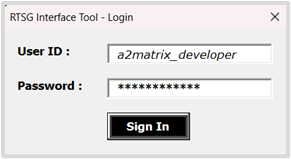
User have to Login to the RTSG Interface with their User ID and Password. Before Sign In, ensure valid license file, enable macro in the given application file (.XLSM). User must have Microsoft Office License (Office 2019 or Latest) in the local PC.
Set Project Directory
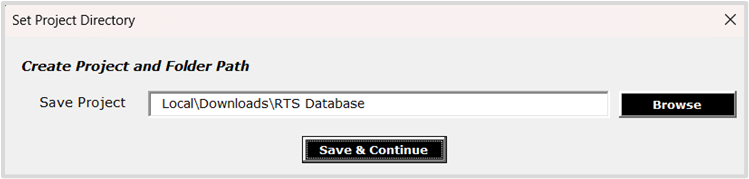
User must set the working “Project Directory”. User can browse the folder path or create new folder at given folder path by editing the last folder name. By default, it will create “RTS Database” folder in the local download folder path. After Setting Project Directory, User can Save & Continue, it will open the Main “RTSG Interface”
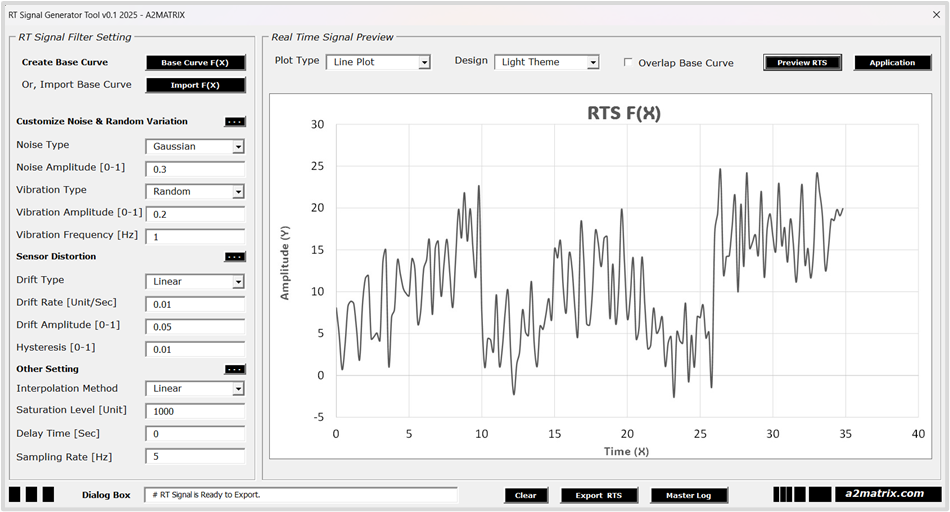
RTSG Interface
Step 1 : Create Base Curve/ Import Base Curve
Base Curve F(x) will open the new window where user can build base curve (x, y) with the combination of available base function F(X). It is extension of “Function Interface Tool” (Released, checkout VBA Tool Box at a2matrix.com) where user can add multiple complex function to the base curve f(x) with continuous time domain.
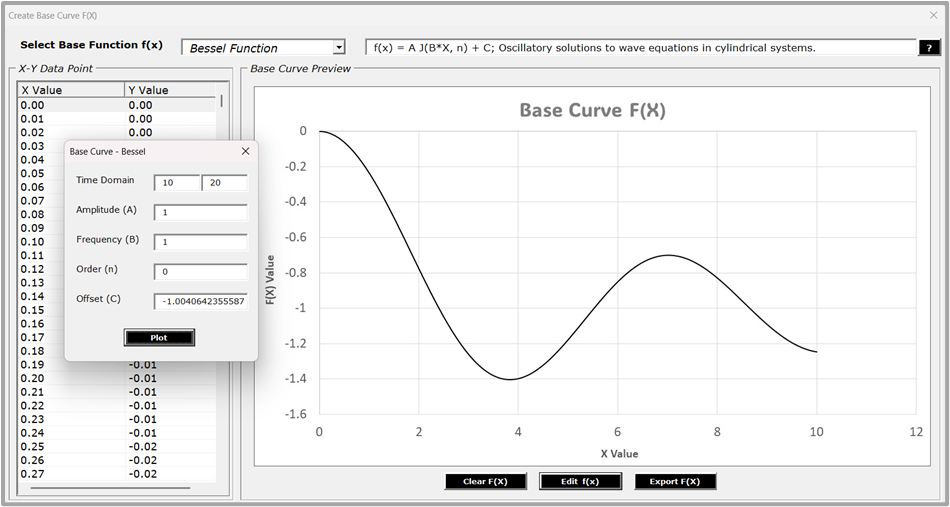
Add 1st Function to Base Curve
Select Function (Demo: Bessel Function), Edit f(x) for function parameters customization as applicable. Unlike Function Interface Tool v0.1, Base Curve extension version allows only time domain (fixed) in X – axis, and thus negative value is restricted for all function in “Base Curve Edit” window. Time domain start value with “0” (default for first base function) or user given positive number and end value with “+10” (default). After “Plot” we can preview the base curve (Bessel).
| F(X) | Parameters | Equations | Coverage |
| Bessel Function | Time Domain, Amplitude, Frequency, Order, Offset | Y = A*J (Bt, n) + C | Unique |
| Constant Function | Time Domain, Offset | Y = C | Common |
| Exponential Function | Time Domain, Amplitude, Base, Offset | Y = A*B Power(t) + C | Unique |
| Gamma Function | Time Domain, Amplitude, Offset | Y = A*Γ(t) + C | Unique |
| Linear Function | Time Domain, Slope, Offset | Y = m*t + C | Common |
| Log Function | Time Domain, Amplitude, Base, Offset | Y = A*Log(t)|B + C | Unique |
| Power Function | Time Domain, Amplitude, Power, Offset | Y = A*t Power(n) + C | Polynomial |
| Sigmoid Function | Time Domain, Amplitude, Offset | Y = A/(1+e*Power(-t)) + C | Unique |
| Sine Function | Time Domain, Amplitude, Offset | Y = A*Sin(t) + C | Trigonometry |
| Step Function | Time Domain, Step Input, Offset | t = C | Unique |
After first base curve plot, time domain start value (freeze at end value of previous function, 10) and end value add with “+10” (default) ready to plot the next Bessel curve. User can plot subsequent Bessel function between time domain (10 to any value greater than 10) or close the “Base Curve Bessel” window and plot the next function. However X axis variable “time” can be offset “negative” during export.
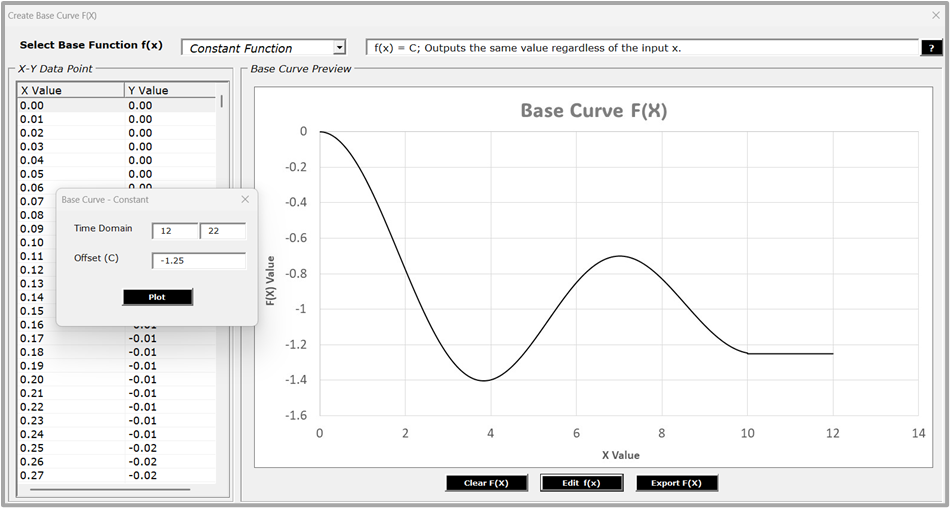
Add 2nd Function to Base Curve
Select Function (Demo: Constant Function), Edit f(x). Time Domain start value is freeze at 10 (1st Function (Bessel) have end time domain at 10), Offset (C) freeze and get updated for the Constant Function, such that the start “Y” value of current 2nd function remains same as previous 1st function Offset at end value of time domain. Plot Constant function between time domain 10 to 12. We can plot subsequent constant function between time domain (12 to any value greater than 12) or close the “Base Curve Constant” window and plot the next selected function and so.
Help & Reset Option
User can access function web reference with “Question” button at the top right, also can clear the Base Curve with Clear F(X) button to reset the Base Curve.
Export Base Curve
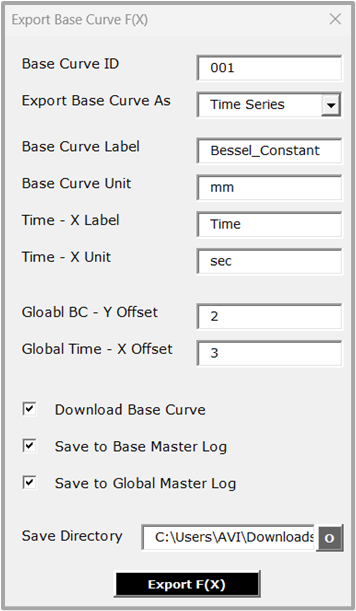
User can set the Base Curve ID (default 001), export base curve as time series (export “x” and “y” value) or independent data points (export only “y” value), rename base curve label (“x” and “y”), base curve unit (“x” and “y”) and global offset of “X” and “Y” value for the Base Curve. User can download the Base Curve XLSX file (default project directory or change the directory temporary with “O” button to download the base curve in user selected path), Save to Base Master Log (master log data contain only exported base curves) or Save to Global Master Log (master log data contain both exported base curve and RT Signal). In current demo, we are exporting Base Curve F(X) with global Offset X = 3 and Y = 2.
Import Base Curve
User can import any measurement data (CSV, XLSX, ASC, TXT) and select Base Curve from the available channel to preview and continue with RTSG Interface.
Step 2 : RTS Filter Setting
Next, User can customize noise and random variation, sensor distortion, and other setting (default value can be reset with “3 dot” button respectively. The transformation of base curve F(X) to RT Signal can be tune as per the RT Signal Filter Setting Option given as,
| Filter Option | Effect on Signal | Unit | Valid Inputs |
| Noise Type | Adds random fluctuations to simulate sensor/electrical noise | NA | “Gaussian”, “Uniform”, “Pink” |
| Noise Amplitude | Controls magnitude of noise fluctuations | % | 0.01 to 1 (1% to 100% of Signal) |
| Delay Time | Shifts signal in time to simulate processing delays | second | Positive Value |
| Vibration Frequency | Adds periodic oscillations for mechanical effects | Hz | 1 to 1000 Hz |
| Vibration Amplitude | Controls intensity of vibrations | % | 0.01 to 1 (1% to 100% of Signal) |
| Vibration Type | Determines waveform of vibration | NA | “Sinusoidal”, “Random”, “Sawtooth” |
| Drift Rate | Adds slow signal deviation over time | 1/second | Positive Value |
| Drift Type | Determines how drift accumulates | NA | “Linear”, “Exponential”, “Random Walk” |
| Drift Amplitude | Limits total drift effect | % | 0.01 to 1 (1% to 100% of Signal) |
| Sampling Rate | Determines output signal resolution | Hz | 1 to 1000 Hz |
| Interpolation Method | Affects how values are calculated between points | NA | “Linear”, “Spline”, “Polynomial”, Moving Avg. |
| Saturation Level | Limits maximum/minimum output values | NA | Real Number |
| Hysteresis | Simulates sensor stickiness/delayed response | % | 0.01 to 0.1 (1% to 10% of Signal) |
Step 3 : RTS Preview & Application
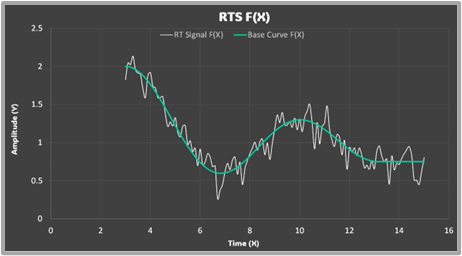
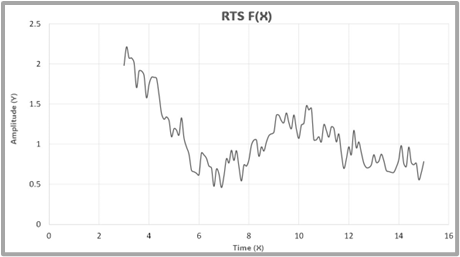
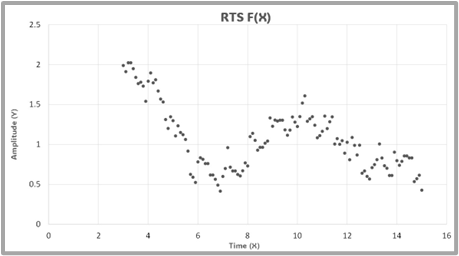
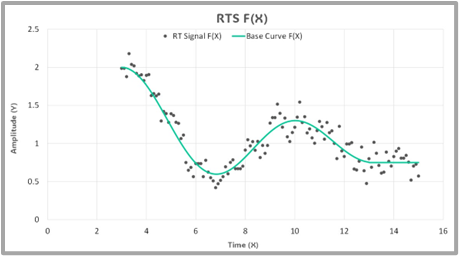
Preview RTS with default filter setting.
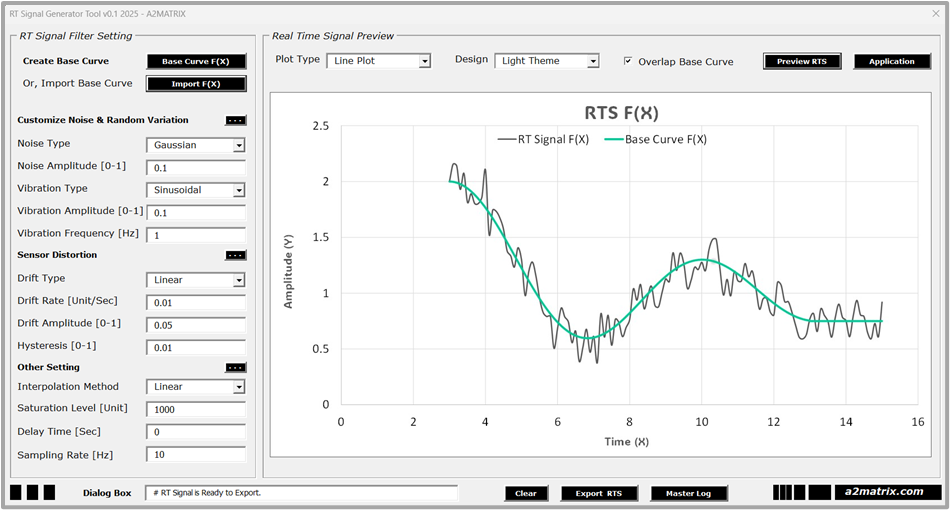
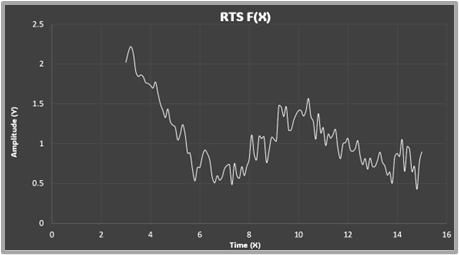
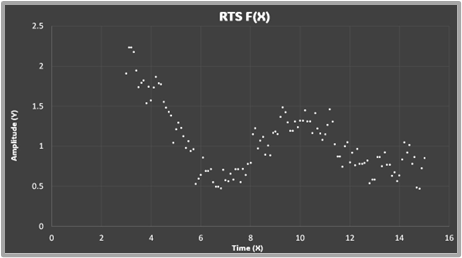
Real Time Signal Preview for Plot Type (Line, Scatter), Design (Light, Dark), Overlap Base Curve (True, False) is available for the RTS F(X).
RT Signal Application
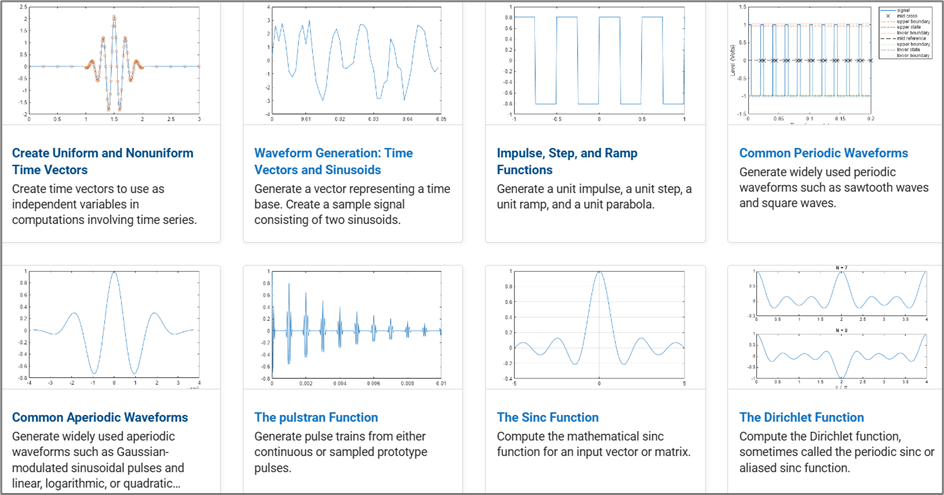
To know more about the real time signal generation and visualization (MATLAB) across various industry, check out the top right “Application” button.
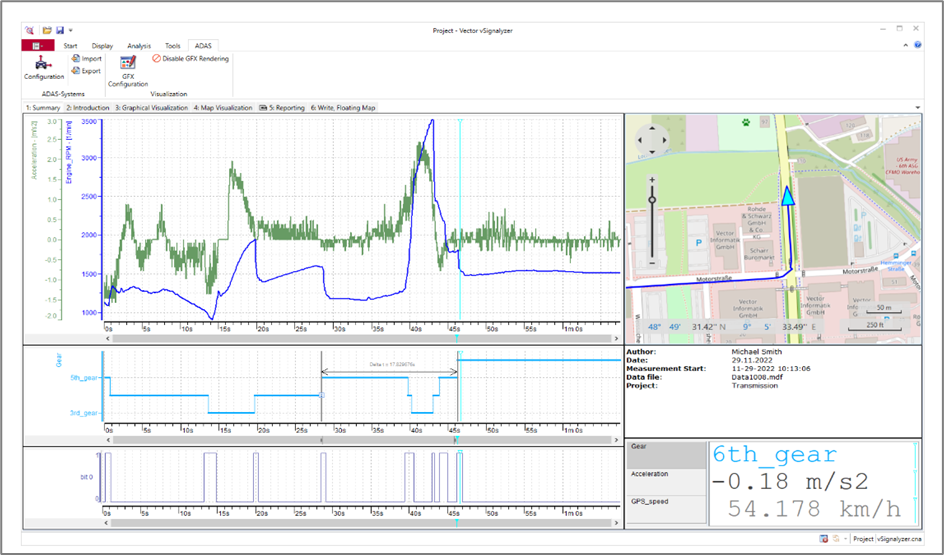
For signal Measurement and Analysis, check out Vector Signal Visualizer.
Step : 4 RTS Export
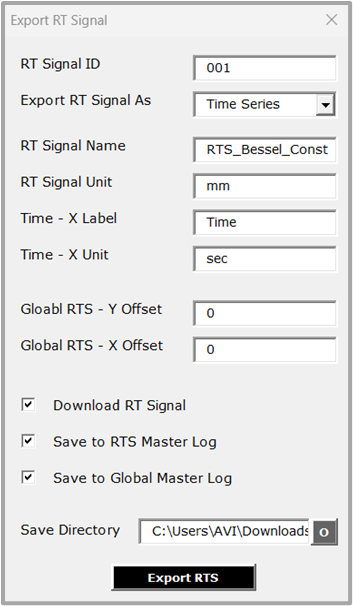
Export RT Signal: User can set the RT Signal ID (default 001), export RT Signal as time series (export “x” and “y” value) or independent data points (export only “y” value), rename RT Signal label (“x” and “y”), RT Signal unit (“x” and “y”) and global offset of “X” and “Y” value for the RT Signal. User can download the RT Signal XLSX file (default project directory or change the directory temporary with “O” button to download the base curve in user selected path), Save to RT Master Log (master log data contain only exported RT Signal) or Save to Global Master Log (master log data contain both exported base curve and RT Signal).
Step : 5 Master Log Data
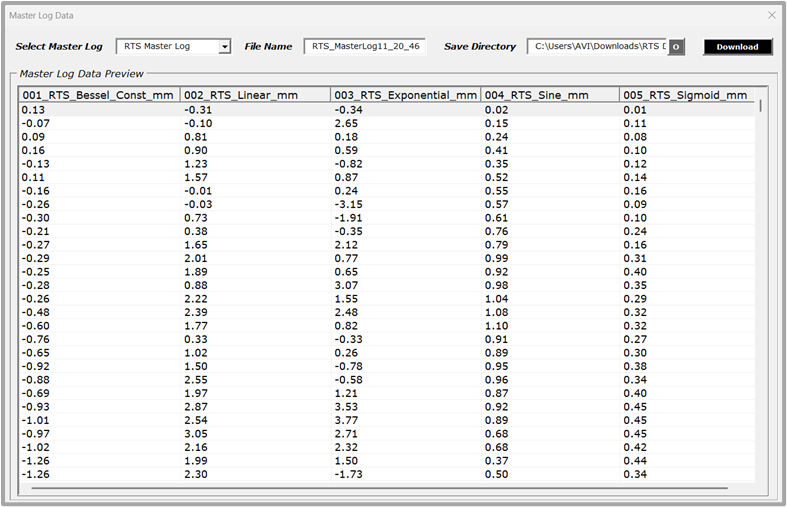
User can download Base Master Log, RTS Master Log, and Global Master Log to the project directory or change the directory temporary with “O” button to download the respective master log in user selected path with given file name.
Base Master Log
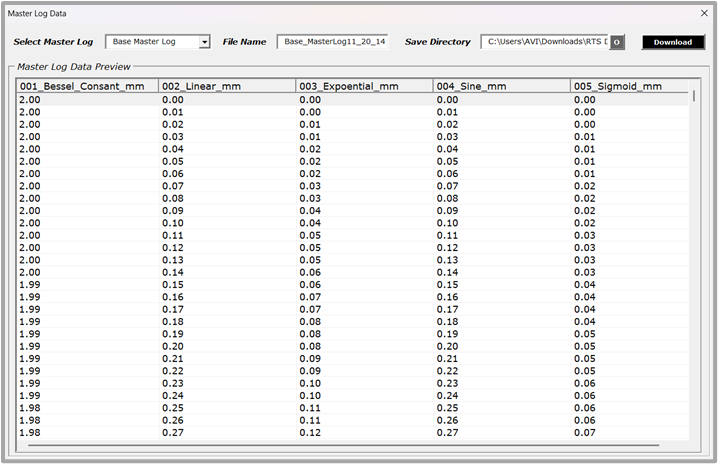
Contain all the Base Curve created and exported to Base Master Log. It is smooth continuous curve, governing by the respective mathematical equation. User can preview “Base Master Log” before download by selecting Master Log.
RTS Master Log
Contain all the RT Signal created and exported to RTS Master Log, User can preview “RTS Master Log” before download.
Global Master Log
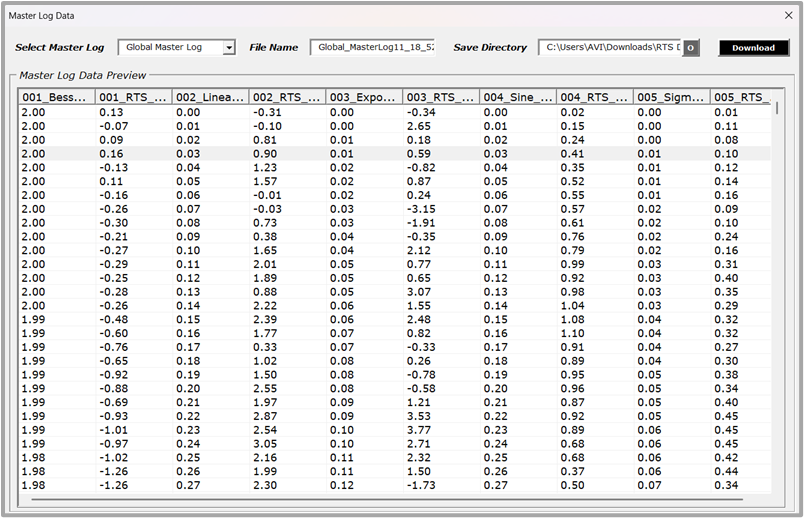
Contain all the Base Curve and RT Signal created and exported to Base Master Log and RTS Master Log respectively. User can preview the Global Master Log before download. It is recommended to Export Base Curve and RTS Signal to Global Master Log, as it has comprehensive master log for both smooth continuous curve and discrete noise curve. In most of the industry specific application, Global Master Log can be design to generate virtual data logs just like conventional sensor data for multiple channels and interfaces.
Application Benchmark for RTSG Interface Tool
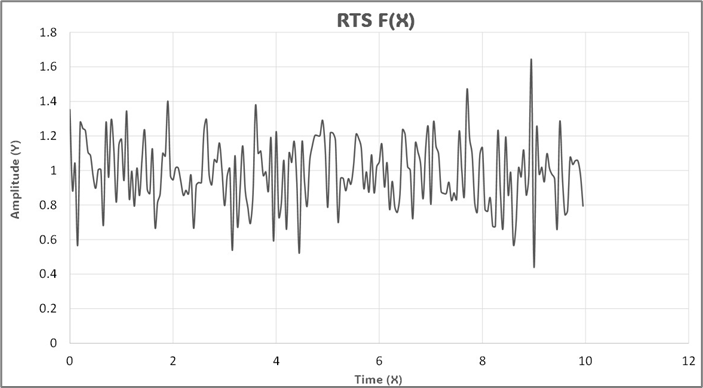
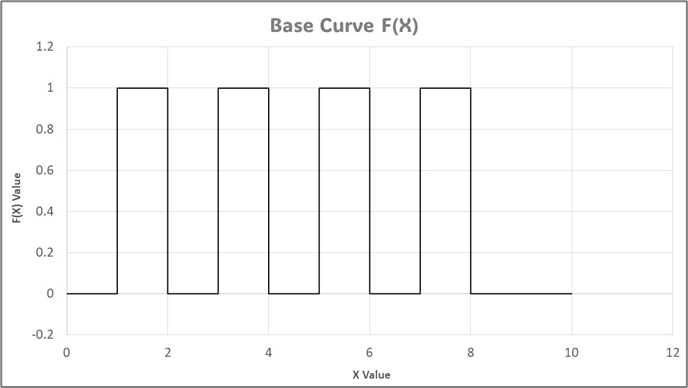
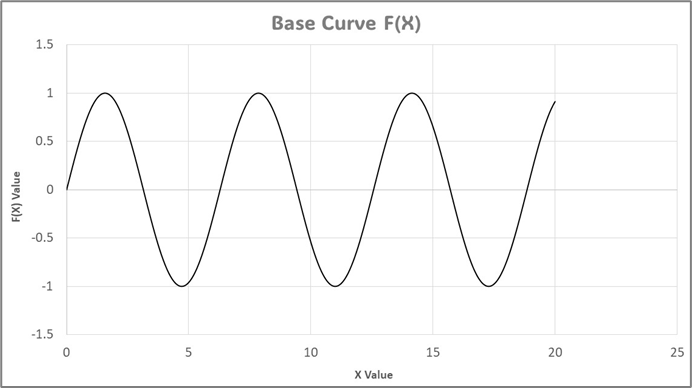
Generate Periodic Signal with RTSG Interface – Base Curve
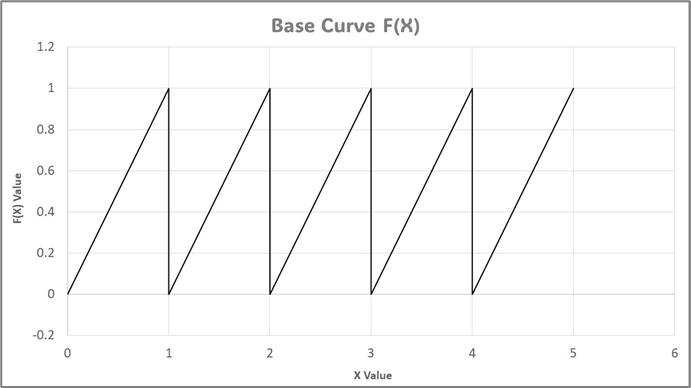
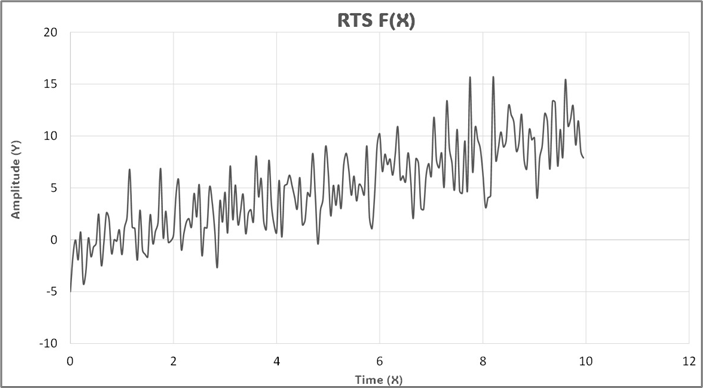
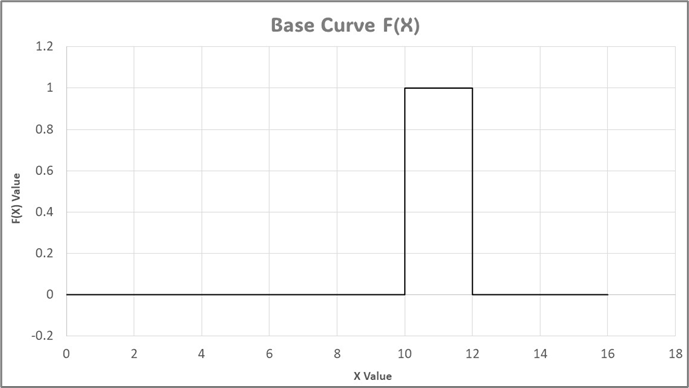
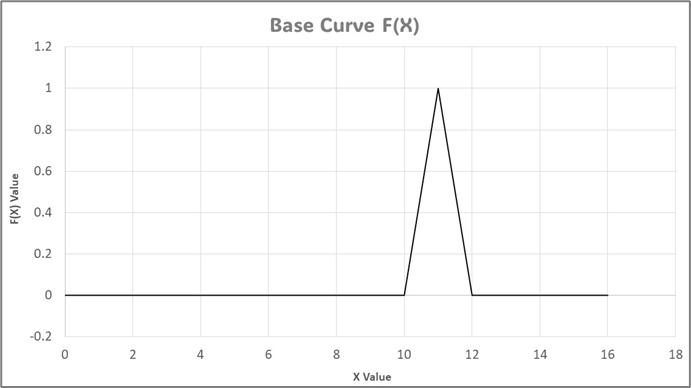
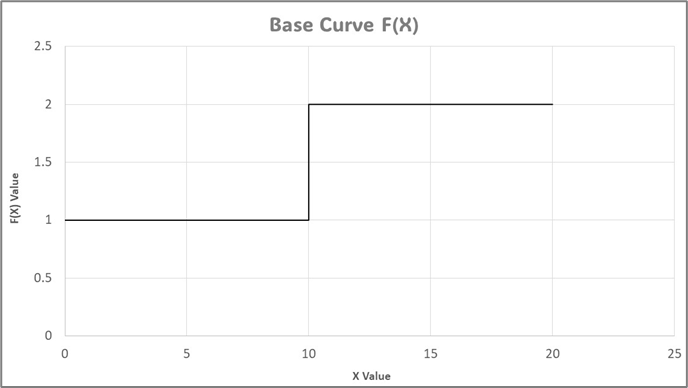
Generate Aperiodic Signal with RTSG Interface – Base Curve
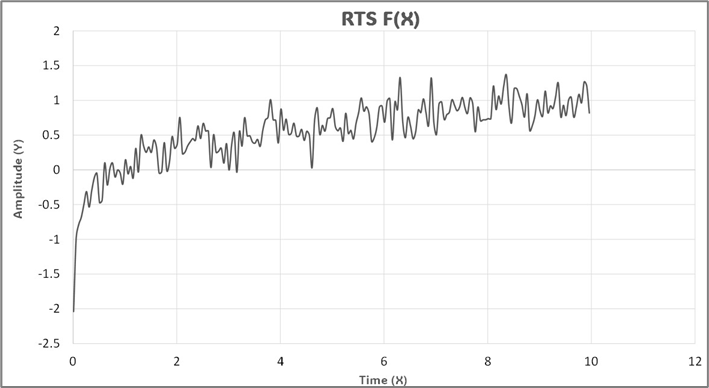
Generate Non-Uniform Signal with RTSG Interface – RTS